
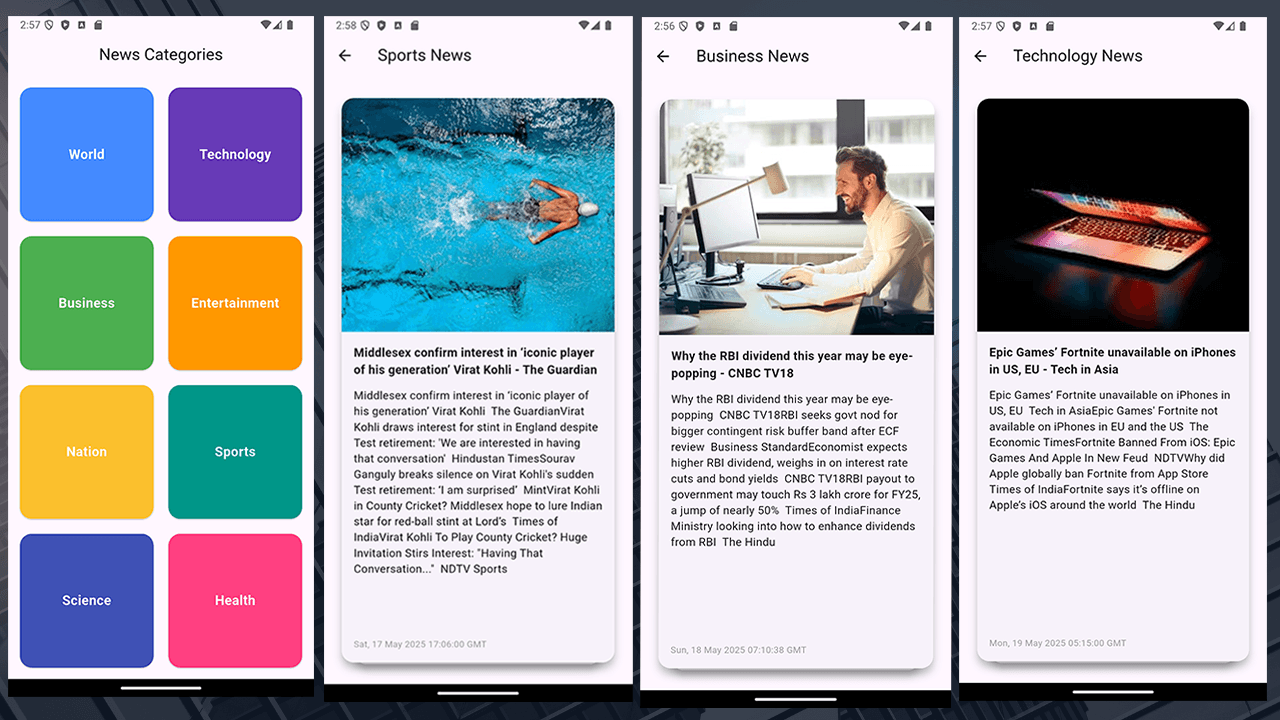
Project Description
Are you looking to build a powerful and dynamic news app using Flutter? In this tutorial, you'll learn how to create a fully functional Flutter news app that integrates with the Google News RSS Feed and features a modern swipeable UI for browsing news by category.
Whether you're a beginner or an intermediate Flutter developer, this guide will walk you through the entire process—from setting up the project to displaying real-time news content in an attractive, user-friendly format.
🔥 What You'll Learn
-
How to fetch news from the Google News RSS API
-
Parse XML data in Flutter
-
Display headlines with image, title, date, and description
-
Build a swipeable card layout using a News Swiper UI
-
Organize articles by news categories like technology, business, sports, and entertainment
-
Make your app responsive and visually appealing with Flutter widgets
🚀 Features of the Flutter News App
-
✅ Real-time News Feed using Google News RSS
-
✅ Swipeable News Interface (like Tinder cards or carousel)
-
✅ Category-based Browsing (Tech, Sports, Health, etc.)
-
✅ Image and Text Layout for rich news presentation
-
✅ Fast and Responsive UI optimized for all screen sizes
🧰 Tools and Packages Used
-
Flutter SDK
-
httpfor fetching data -
xmlfor parsing RSS feeds -
flutter_swiperorpage_viewfor swipeable cards -
cached_network_imagefor optimized image loading
💡 Why Use Google News RSS?
The Google News RSS feed is a free and reliable source of trending headlines across various topics. It allows developers to easily access updated content without needing a paid API key, making it perfect for personal projects or MVPs.
📱 Target Audience
This tutorial is ideal for:
-
Flutter beginners who want to build a real-world project
-
Developers looking to explore API integration in Flutter
-
Anyone interested in news apps, RSS feeds, or swipe-based UI design
📈 SEO Keywords to Target
-
Flutter News App Tutorial
-
Flutter Google News API Integration
-
Swipeable News UI in Flutter
-
Flutter RSS Feed App
-
Flutter XML Parsing Tutorial
-
News App with Flutter for Beginners
STEPS
Using this link for fetching news from Google
https://news.google.com/news/rss/headlines/section/topic/World
WORLD NATION BUSINESS TECHNOLOGY ENTERTAINMENT SPORTS SCIENCE HEALTH
Get Pexels API token from
https://www.pexels.com/api/key/
And update news_screen.dart fetchPexelsImages function
1. Include these dependencies in pubspec.yaml
dependencies:
flutter:
sdk: flutter
http: ^0.13.6
xml: ^6.3.0
url_launcher:
flutter_card_swiper: ^2.0.4
2. Create news_categories_page.dartimport 'package:flutter/material.dart';
import 'news_screen.dart'; // Make sure this path matches where NewsScreen is located
class NewsCategoriesPage extends StatelessWidget {
final List<Map<String, dynamic>> categories = [
{'title': 'World', 'color': Colors.blueAccent},
{'title': 'Technology', 'color': Colors.deepPurple},
{'title': 'Business', 'color': Colors.green},
{'title': 'Entertainment', 'color': Colors.orange},
{'title': 'Nation', 'color': Colors.yellow[700]},
{'title': 'Sports', 'color': Colors.teal},
{'title': 'Science', 'color': Colors.indigo},
{'title': 'Health', 'color': Colors.pinkAccent},
];
@override
Widget build(BuildContext context) {
return Scaffold(
appBar: AppBar(
title: const Text("News Categories"),
centerTitle: true,
),
body: Padding(
padding: const EdgeInsets.all(12.0),
child: GridView.count(
crossAxisCount: 2,
crossAxisSpacing: 12,
mainAxisSpacing: 12,
children: categories.map((category) {
return GestureDetector(
onTap: () {
// Navigate to NewsScreen with the selected category
Navigator.push(
context,
MaterialPageRoute(
builder: (context) => NewsScreen(topic: category['title']),
),
);
},
child: Card(
color: category['color'],
shape: RoundedRectangleBorder(
borderRadius: BorderRadius.circular(16),
),
child: Center(
child: Text(
category['title'],
textAlign: TextAlign.center,
style: const TextStyle(
color: Colors.white,
fontSize: 18,
fontWeight: FontWeight.bold,
),
),
),
),
);
}).toList(),
),
),
);
}
}
2. Create news_screen.dartimport 'dart:convert';
import 'package:flutter/material.dart';
import 'package:url_launcher/url_launcher.dart';
import 'package:http/http.dart' as http;
import 'package:xml/xml.dart';
import 'package:flutter_card_swiper/flutter_card_swiper.dart';
class NewsItem {
final String title;
final String link;
final String pubDate;
final String description;
final String imageUrl;
NewsItem({
required this.title,
required this.link,
required this.pubDate,
required this.description,
required this.imageUrl,
});
}
class NewsScreen extends StatefulWidget {
final String topic;
const NewsScreen({super.key, required this.topic});
@override
State<NewsScreen> createState() => _NewsScreenState();
}
class _NewsScreenState extends State<NewsScreen> {
late Future<List<NewsItem>> _newsFuture;
@override
void initState() {
super.initState();
_newsFuture = fetchGoogleNewsRSS(widget.topic);
}
void _launchURL(String url) async {
final uri = Uri.parse(url);
if (!await launchUrl(uri, mode: LaunchMode.externalApplication)) {
if (context.mounted) {
ScaffoldMessenger.of(context).showSnackBar(
const SnackBar(content: Text('Could not launch URL')),
);
}
}
}
@override
Widget build(BuildContext context) {
final screenHeight = MediaQuery.of(context).size.height;
return Scaffold(
appBar: AppBar(title: Text('${widget.topic} News')),
body: FutureBuilder<List<NewsItem>>(
future: _newsFuture,
builder: (context, snapshot) {
if (snapshot.connectionState == ConnectionState.waiting) {
return const Center(child: CircularProgressIndicator());
}
if (snapshot.hasError) {
return Center(child: Text('Error: ${snapshot.error}'));
}
final newsItems = snapshot.data;
if (newsItems == null || newsItems.isEmpty) {
return const Center(child: Text('No news available.'));
}
return CardSwiper(
cards: newsItems.map((item) {
return GestureDetector(
onTap: () => _launchURL(item.link),
child: Card(
elevation: 8,
shape: RoundedRectangleBorder(
borderRadius: BorderRadius.circular(16),
),
child: Column(
children: [
if (item.imageUrl.isNotEmpty)
ClipRRect(
borderRadius: const BorderRadius.vertical(top: Radius.circular(16)),
child: Image.network(
item.imageUrl,
height: MediaQuery.of(context).size.height * 0.35,
width: double.infinity,
fit: BoxFit.cover,
),
),
Expanded(
child: Padding(
padding: const EdgeInsets.all(16),
child: Column(
crossAxisAlignment: CrossAxisAlignment.start,
children: [
Text(
item.title,
style: const TextStyle(
fontSize: 16,
fontWeight: FontWeight.bold,
),
),
const SizedBox(height: 12),
Expanded(
child: SingleChildScrollView(
child: Text(
item.description,
style: const TextStyle(fontSize: 15),
),
),
),
const SizedBox(height: 12),
Text(
item.pubDate,
style: const TextStyle(
fontSize: 12,
color: Colors.grey,
),
),
],
),
),
),
],
),
),
);
}).toList(),
);
},
),
);
}
}
2. Update main.dartimport 'package:flutter/material.dart';
import 'news_categories_page.dart';
void main() {
runApp(MyApp());
}
class MyApp extends StatelessWidget {
@override
Widget build(BuildContext context) {
return MaterialApp(
title: 'News App',
debugShowCheckedModeBanner: false,
home: NewsCategoriesPage(),
);
}
}
3. Update AndroidMenifest.xml<manifest xmlns:android="http://schemas.android.com/apk/res/android">
<uses-permission android:name="android.permission.INTERNET" />
<uses-permission android:name="android.permission.ACCESS_NETWORK_STATE" />
<application
android:label="news"
android:name="${applicationName}"
android:icon="@mipmap/ic_launcher">
ADDED ON 6/8/2025
IF NOT WORKING UPDATE 'android\app\build.gradle.kts' Plugin with thisid("org.jetbrains.kotlin.android") version "2.2.0-RC2" apply false
'android\settings.gradle.kts' Plugin with this
plugins {
    id("com.android.application")
    id("kotlin-android")
    // The Flutter Gradle Plugin must be applied after the Android and Kotlin Gradle plugins.
id("dev.flutter.flutter-gradle-plugin")
}

android {
    namespace = "com.codingmstr"
compileSdk = 35
ndkVersion = "27.0.12077973"

compileOptions {
        sourceCompatibility = JavaVersion.VERSION_11
        targetCompatibility = JavaVersion.VERSION_11
    }

    kotlinOptions {
        jvmTarget = JavaVersion.VERSION_11.toString()
    }

    defaultConfig {
        // TODO: Specify your own unique Application ID (https://developer.android.com/studio/build/application-id.html).
applicationId = "app.tradeone.tradeone"
// You can update the following values to match your application needs.
        // For more information, see: https://flutter.dev/to/review-gradle-config.
minSdk = 27
targetSdk = 34
versionCode = flutter.versionCode
        versionName = flutter.versionName
    }

    buildTypes {
        release {
            // TODO: Add your own signing config for the release build.
            // Signing with the debug keys for now, so `flutter run --release` works.
signingConfig = signingConfigs.getByName("debug")
        }
    }
}

flutter {
    source = "../.."
}